
Correlation in Excel Data Analysis
Correlation in Excel Data Analysis is quite helpful for students who study statistics and want to analyze data to find correlation matrix between more than two variables. In this section, we will learn Multiple Correlation Excel. Multiple correlation is used to predict a given variable based on a linear function of a set of other variables. When we have two variables (X, Y), one (X) predicts the other (Y), we call the association as simple correlation. When we use more than two variables (X, Y, Z, ..N), in correlation analysis, we call it multiple correlation. It means that if X and Z predict Y, we are talking about multiple correlation.
In this section:
- Analysis Tool Pack in Excel.
- How to Calculate Multiple Correlation in Excel Data Analysis?
- How to Interpret Correlation Coefficients in Multiple Correlation?
- Practice Problems on Correlation in Excel Data Analysis.
- More Related Readings on Correlation and Regression Analysis in Excel.
1. Analysis Tool Pack in Excel:
When we need to develop complex statistical or engineering analyses, the use Excel Analysis ToolPack saves steps and time. As it is in most of the Excel functions, users provide the data and parameters for each analysis, and the ToolPack performs analysis and displays results in an output table. Some tools generates more outputs such as charts and graphs.
Check whether you already have the ToolPack installed in your Excel:
To check whether you have already installed the Analysis ToolPack, follow the steps below:
Click on the Data Tab (as in 1 in the image below)–> then look at the top right corner and check whether you can see the Data Analysis ToolPack just below the Solver. In our example image below, we do not have the Data Analysis ToolPack.
in short: Data Tab –> Look at the top-right corner of the Ribbon.

How to install Analysis ToolPack:
To install the Data Analysis ToolPack, follow the steps below:
Step 1: Click on File Tab–> then click on Options. Now you see the Excel Options dialogue box as follows.
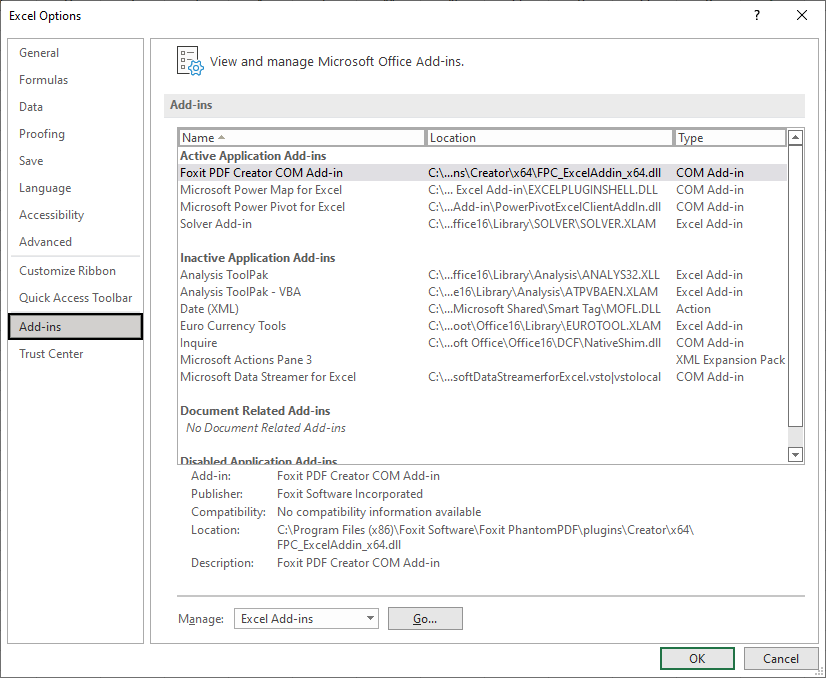
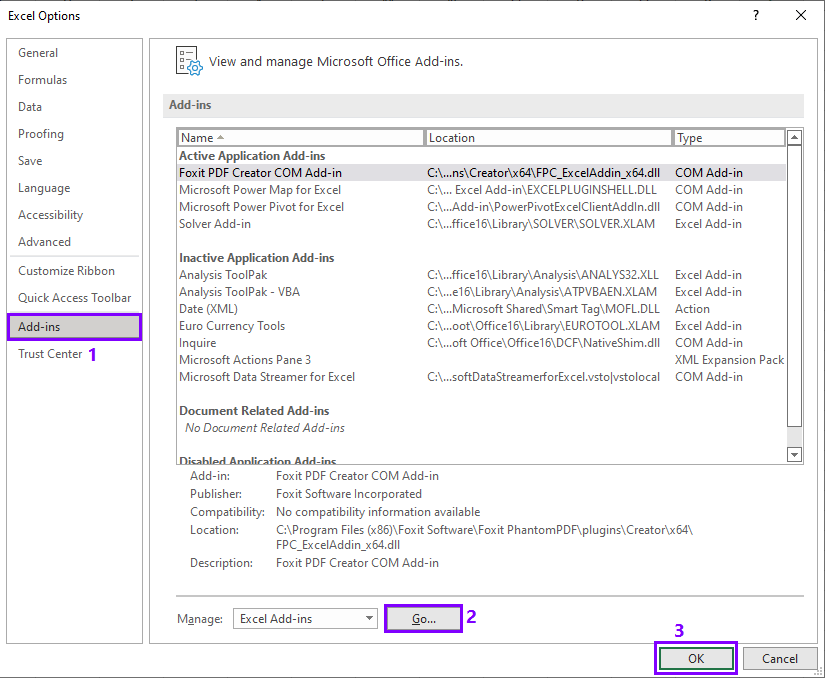
Step 2: Click Add-ins (as 1 in the image below)–> Click on Go (2 in image)–> click OK (3 in image).
After clicking OK, you can see the following Add-ins dialogue box, and see that Analysis ToolPack is unchecked.
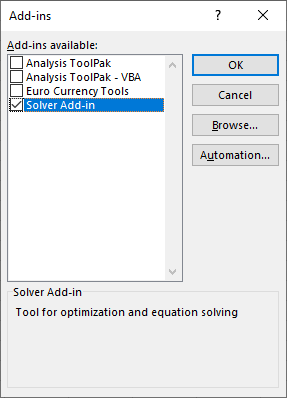
Step 3: Check all the unchecked Add-ins available as shown in the image below:
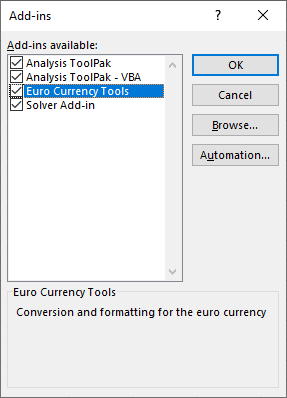
Step 4: Finally, you can now check your Analysis ToolPack. Click on Data Tab –> Look at the Top-right corner of the Ribbon. You can now see the Data Analysis just below Solver (as in image below)

2. How to Calculate Multiple Correlation in Excel:
To calculate multiple correlation coefficients, we will use the company data file, which can be downloaded from the Download button below. Follow the steps below:
Step 1: Start the Tool Pack:
Click Data (1) –> Data Analysis (2) –> Correlation (3) –> OK (4)
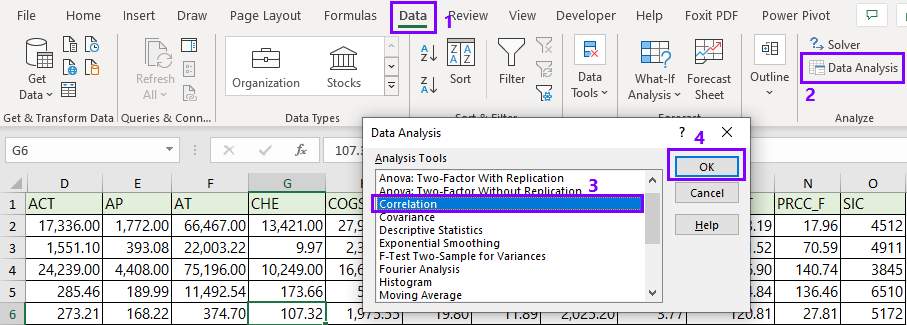
Step 2: After clicking OK, you will see the Correlation dialogue box as follows.
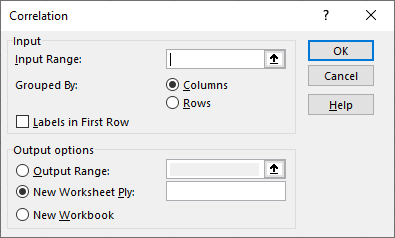
Step 3: Complete the following actions:
- Input Range: In our example data set, we select D1:O2307.
- Grouped By: Column
- Check Labels in the First Row
- Select New Worksheet Ply as Output options.
- Click OK.
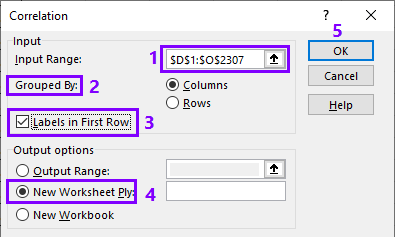
After clicking OK, you will see that a correlation table is created in a separate worksheet as follows:
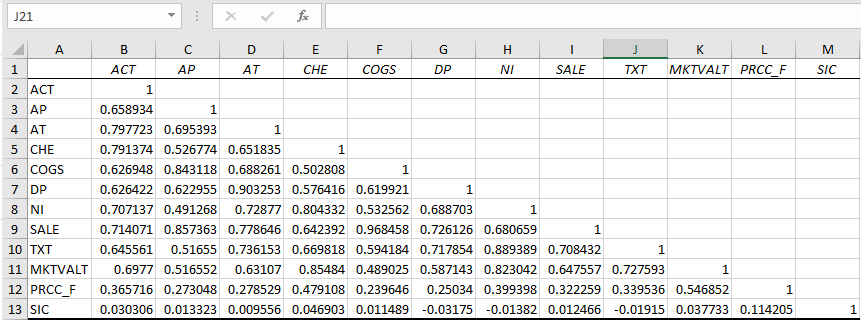
Step 4: Format the Correlation Table:
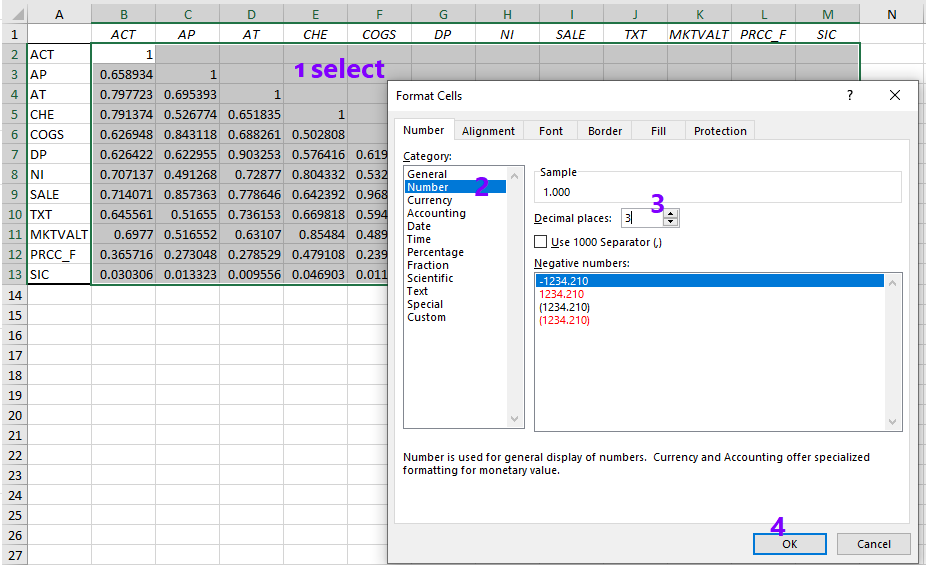
After having the correlation table, you should format the decimal points for better visibility, and you may also like to change the font type and color. For example, to set the decimal point to 3 digit, (1) Select the range, (2) Click on Number , (3) Select 3 decimal places, (4) click OK.
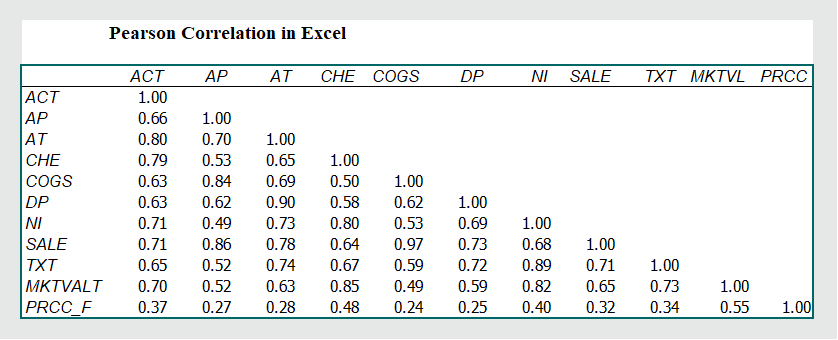
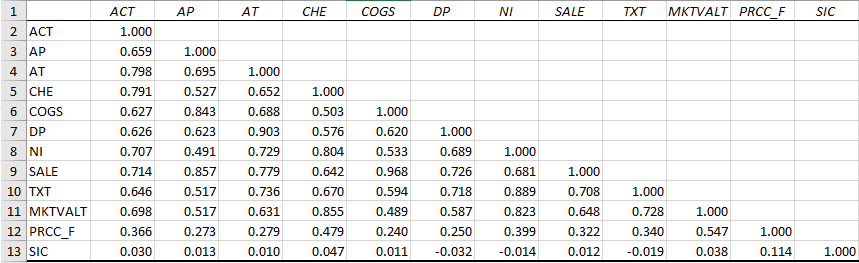
The following table is much better than the previous one.
3. How to Interpret Correlation Coefficients in Multiple Correlation?
Suppose, we have two variables–Dependent variable (Y) and Independent variable (X). The multiple correlation coefficient is used in multiple regression analysis to assess the quality of the prediction of the dependent variable (Y). It corresponds to the squared correlation between the predicted and the actual values of the dependent variable. It can also be interpreted as the proportion of the variance of the variable Y explained by the variable X.
The correlation coefficient indicates the direction of the relationship and the quality of the relationship. The closer the correlation coefficient to 1 or -1, the stronger the relationship. For example, if the correlation coefficient is 0.90, it means a strong positive relation whereas the correlation coefficient of 0.10 indicates a weak positive relation between two variables.
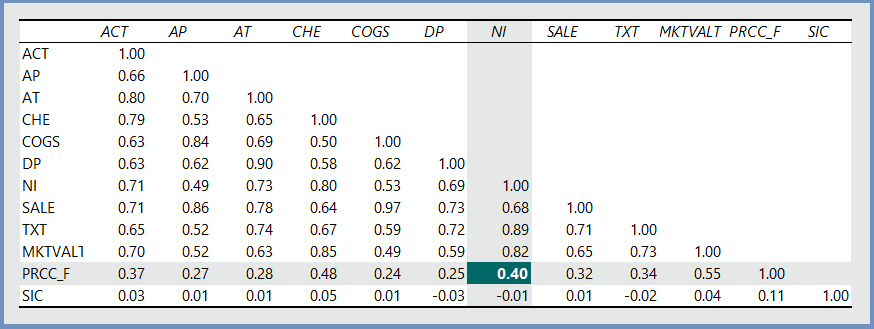
Example 1: We want to know the strength of relationship between Net Income (NI) and Closing Price of Stock (PRCC_F):
Explanation: From the table below, we can see the correlation coefficient of 0.40 between NI and PRCC_F. This 0.40 has two aspects:
- The relation between Net Income and Closing Price is POSITIVE.
- If Net Income increases by $1.00, then the Closing Price is more likely to increase by $0.40.
4. Practice Problems:
Mr. Robert Gary, the CEO of AMEX Corporation, wants to investigate the relationship between Net Income and the following variables:
(I) ACT (II) AP (III)AT (IV) CHE (V) COGS (VI) DP (VII) SALE (VIII) TXT (IX) MKTVALT and (X) PRCC_F.
where,
| Term | Definition |
| ACT | Current Assets-Total |
| AP | Accounts Payable |
| AT | Total Assets |
| CHE | Cash and Short-term Investment |
| COGS | Cost of Goods Sold |
| DP | Depreciation and Amortization |
| NI | Net Income (Loss) |
| SALE | Sales/Turnover |
| TXT | Total Income Taxes |
| MKTVALT | Total market value |
| PRCC_F | Closing Price |
Requirements:
(I) You are required to prepare the correlation table by using the Excel Analysis ToolPack.
(II) You are required to interpret the correlation coefficients between Net Income and other variables one by one.
[To answer the questions, you are required to use the correlation data]
4 Responses