
Shortcut Keys for Excel to Control & Navigate
List of Shortcut Keys for Excel to control and navigate in Excel. Studies (e.g., Lee, Shifflett, and Downen, 2019) find that use of Excel Shortcuts improves performance by 13.7%. Here is a list of Excel Shortcut Keys of Keyboard Functions.
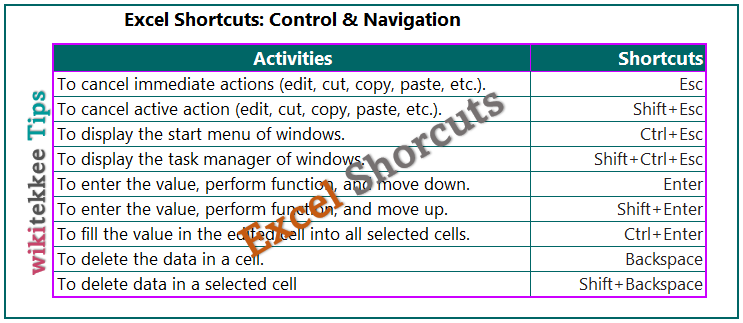
| To move one cell up. | Up Arrow |
| To extend the selection up one cell. | Shift+Up Arrow |
| To go the cell at the top of the region. | Ctrl+Up Arrow |
| To extend the selection up to the end of the region. | Shift+Ctrl+Up Arrow |
| To scroll down one page. | Page Down |
| To extend the selection down one page. | Shift+Page Down |
| To move to the next worksheet. | Ctrl+Page Down |
| To scroll one page right. | Alt+Page Down |
| To Toggle end mode (and extend when you press shift+an arrow key). | Shift+End |
| To select the last cell in the worksheet. | Ctrl+End |
| To extend the selection to the last active cell in the worksheet. | Shift+Ctrl+End |
| To cancel (edit, copy, cut, dialog boxes, and so on). | Esc |
| To cancel (edit, copy, cut, dialog boxes, and so on). | Shift+Esc |
| To display the windows start menu. | Ctrl+Esc |
| To display the windows task manager. | Shift+Ctrl+Esc |
| To enter the value, perform function, and move down. | Enter |
| To enter the value, perform function, and move up. | Shift+Enter |
| To fill the value in the edited cell into all selected cells. | Ctrl+Enter |
| To delete the data in a cell. | Backspace |
| To delete data in a selected cell | Shift+Backspace |
| To show the active cell. | Ctrl+Backspace |
| To undo previous action. | Alt+Backspace |
| To clear a cell data | Delete |
| To cut a cell data to be pasted in another cell. | Shift+Delete |
| To clear the data in a cell where you have the mouse cursor. | Ctrl+Delete |
| To go to the end of the line. | End |
| To redo previous action. | Alt+Enter |
| To fill the value in the edited cell into all selected cells. | Shift+Ctrl+Enter |
| To select the first cell in the row. | Home |
| To extend the selection to the first cell in the row. | Shift+Home |
| To select the first cell in the window (or pane). | Ctrl+Home |
| To extend the selection to the first cell in the window or pane. | Shift+Ctrl+Home |
| To Toggle overwrite mode in edit mode. | Insert |
| To paste data to a cell. | Shift+Insert |
| To copy from a cell to be pasted to another cell. | Ctrl+Insert |
| To move down one cell. | Down Arrow |
| To extend the selection down one cell. | Shift+Down Arrow |
| To select the last cell in the region down. | Ctrl+Down Arrow |
| To open the list (autocomplete, filter, pick from list, or validation). | Alt+Down Arrow |
| To extend the selection down to the last cell in the current region or the first cell in the next region. | Shift+Ctrl+Down Arrow |
| To move left one cell. | Left Arrow |
| To extend the selection left one cell. | Shift+Left Arrow |
| To select the leftmost cell in the current region or the rightmost cell in the next region. | Ctrl+Left Arrow |
| To extend the selection left To the last cell in the current region or the first cell in the next region. | Shift+Ctrl+Left Arrow |
| To ungroup. | Shift+Alt+Left Arrow |
| To move the active cell to the upper-left cell of the selection. | Ctrl+Alt+Left Arrow |
| To move right one cell. | Right Arrow |
| To extend the selection right one cell. | Shift+Right Arrow |
| To select the last cell to the right in the current region or the first cell in the next region. | Ctrl+Right Arrow |
| To extend the selection to the right, to the last cell in the current region, or to the first cell in the next region. | Shift+Ctrl+Right Arrow |
| To group. | Shift+Alt+Right Arrow |
| To move the active cell To the next nonadjacent region within the selection. | Ctrl+Alt+Right Arrow |
| To extend the selection one worksheet down. | Shift+Ctrl+Page Down |
| To extend the selection one page right. | Shift+Alt+Page Down |
| To scroll up one page. | Page Up |
| To extend the selection one page up. | Shift+Page Up |
| To move to the previous worksheet. | Ctrl+Page Up |
| To scroll one page left. | Alt+Page Up |
| To extend the selection one worksheet up. | Shift+Ctrl+Page Up |
| To extend the selection one page left. | Shift+Alt+Page Up |
| To enter the value, perform formula action, and move down. | Return |
| To enter the value and move up. | Shift+Return |
| To fill the value in the edited cell into all selected cells and do not move. | Ctrl+Return |
| To redo. | Alt+Return |
| To fill the value in the edited cell into all selected cells and do not move. | Shift+Ctrl+Return |
| To select row. | Shift+Spacebar |
| To select column. | Ctrl+Spacebar |
| To select all. | Shift+Ctrl+Spacebar |
| To move to the next cell to the right. | Tab |
| To move to the next cell to the left. | Shift+Tab |
| To move to the next window. | Ctrl+Tab |
| To move to the next application. | Alt+Tab |
| To move to the previous window. | Shift+Ctrl+Tab |
| To see the opened window. | Shift+Alt+Tab |
References:
Advertisements
Lee, L., Shifflett, E., & Downen, T. (2019). Teaching excel shortcuts: A visualization and game-based approach. Journal of Accounting Education, 48, 22-32.
Further reading:
One Response