
Excel Shortcut Keys
List of Excel Shortcut Keys of Keyboard Functions. Studies (e.g., Lee, Shifflett, and Downen, 2019) find that use of Excel Shortcuts improves performance by 13.7%. Here is a list of Excel Shortcut Keys of Keyboard Functions.
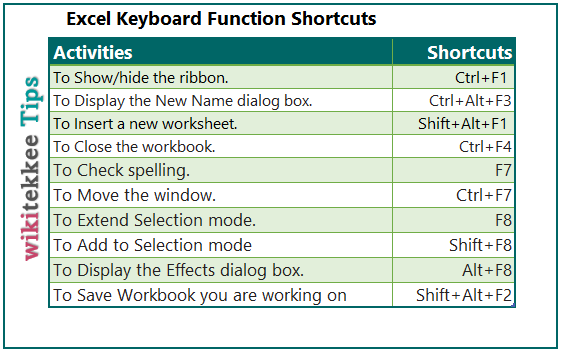
The following Excel Shortcut Keys will help you speed up your performance in Excel.
Advertisements
| To edit the cell in which you have the active cursor. | F2 |
| To insert/edit a comment. (right-click–> edit note) | Shift+F2 |
| To display the save as dialog box. | Alt+F2 |
| To display print preview on the print tab in backstage view. | Ctrl+F2 |
| To save workbook. | Shift+Alt+F2 |
| To display the open dialog box. | Ctrl+Alt+F2 |
| To display the print tab in backstage view. | Shift+Ctrl+Alt+F2 |
| To display the insert function dialog box. | Shift+F3 |
| To display the name manager dialog box. | Ctrl+F3 |
| To display the create names from selection dialog box. | Shift+Ctrl+F3 |
| To display the new name dialog box. | Ctrl+Alt+F3 |
| To repeat the last command or action. | F4 |
| To find the next instance of the most recent search. | Shift+F4 |
| To close the workbook. | Ctrl+F4 |
| To close the application. | Alt+F4 |
| To find the previous instance of the most recent search. | Shift+Ctrl+F4 |
| To close the application. | Shift+Alt+F4 |
| To close the application. | Ctrl+Alt+F4 |
| To close the application. | Shift+Ctrl+Alt+F4 |
| To display the go To dialog box. | F5 |
| To display the find and replace dialog box. | Shift+F5 |
| To restore the selected window size. | Ctrl+F5 |
| To switch between the active ribbons. press f6 until you see letters on the tabs and then press the letter of the respective tabs. | F6 |
| To same as f6, in reverse order. | Shift+F6 |
| To move to the next workbook. | Ctrl+F6 |
| To move to the previous workbook. | Shift+Ctrl+F6 |
| To check spelling. | F7 |
| To move the window. | Ctrl+F7 |
| To extend selection mode. | F8 |
| To add to selection mode | Shift+F8 |
| To display the effects dialog box. | Alt+F8 |
| To minimize the active window. | Ctrl+F9 |
| To calculate all worksheets in all open workbooks, regardless of whether they have changed since the last calculation. | Ctrl+Alt+F9 |
| To recheck the dependent formulas. | Ctrl+Shift+Alt+F9 |
| To display shortcut key labels. | F10 |
| To activate shortcut (context) menus. | Shift+F10 |
| To Toggle the maximized/restored window. | Ctrl+F10 |
| To display the menu of the error checking button. | Alt+Shift+F10 |
| To insert a chart on a new worksheet. | F11 |
| To create a new worksheet. | Shift+F11 |
| To show the visual basic editor. | Alt+F11 |
| To display the save as dialog box. | F12 |
| To save the workbook you are working on. | Shift+F12 |
| To display the open dialog box. | Ctrl+F12 |
| To display the print tab in backstage view. | Shift+Ctrl+F12 |
| To display the help window. | F1 |
| To show/hide the ribbon. | Ctrl+F1 |
| To insert a chart as an object. | Alt+F1 |
| To insert a new worksheet. | Shift+Alt+F1 |
| To insert a Microsoft excel 4 macro worksheet. | Ctrl+Alt+F1 |
References:
Lee, L., Shifflett, E., & Downen, T. (2019). Teaching excel shortcuts: A visualization and game-based approach. Journal of Accounting Education, 48, 22-32.
Further reading:
3 Responses